ScriptOS
Turn a Python or R command-line script into a validated, reproducible desktop app — no terminal required.
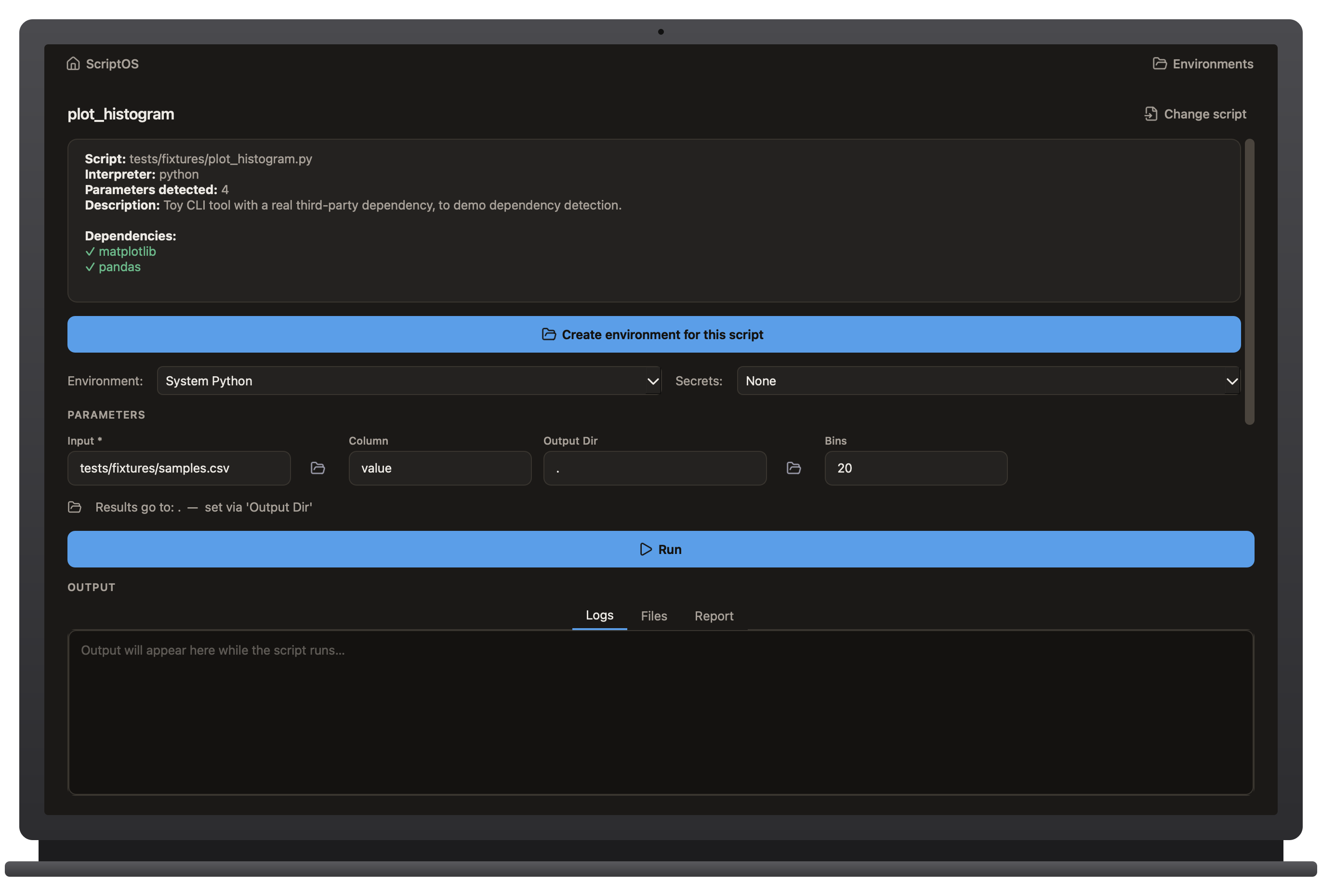
Appearance
Light mode is the default. Switch via View → Appearance → Dark / Light in the menu bar. Takes effect after a restart (ScriptOS offers to restart immediately) — icons and colors are baked in at startup, so a live switch isn't worth the complexity for a rarely-toggled setting.
Starting the app
Download ScriptOS.dmg from the repo's GitHub Releases page,
open it, and drag ScriptOS into Applications. Then double-click ScriptOS
in Applications, or Spotlight-search for "ScriptOS".
Download ScriptOS-windows.zip from the repo's GitHub Releases page,
unzip it anywhere, and run ScriptOS.exe.
On Windows, run build_windows.bat — see BUILD_WINDOWS.md in the repo root.
Whichever way you start it, use the house icon (top left) any time to get back to your loaded script — it works from anywhere, including the Environments page.
Try everything: a full walkthrough
Every path below is a real file already in the ScriptOS project — clone/open the project folder and follow along exactly. Nothing here needs the internet except the one-time environment/package installs.
1. Run a plain script (no dependencies, no environment needed)
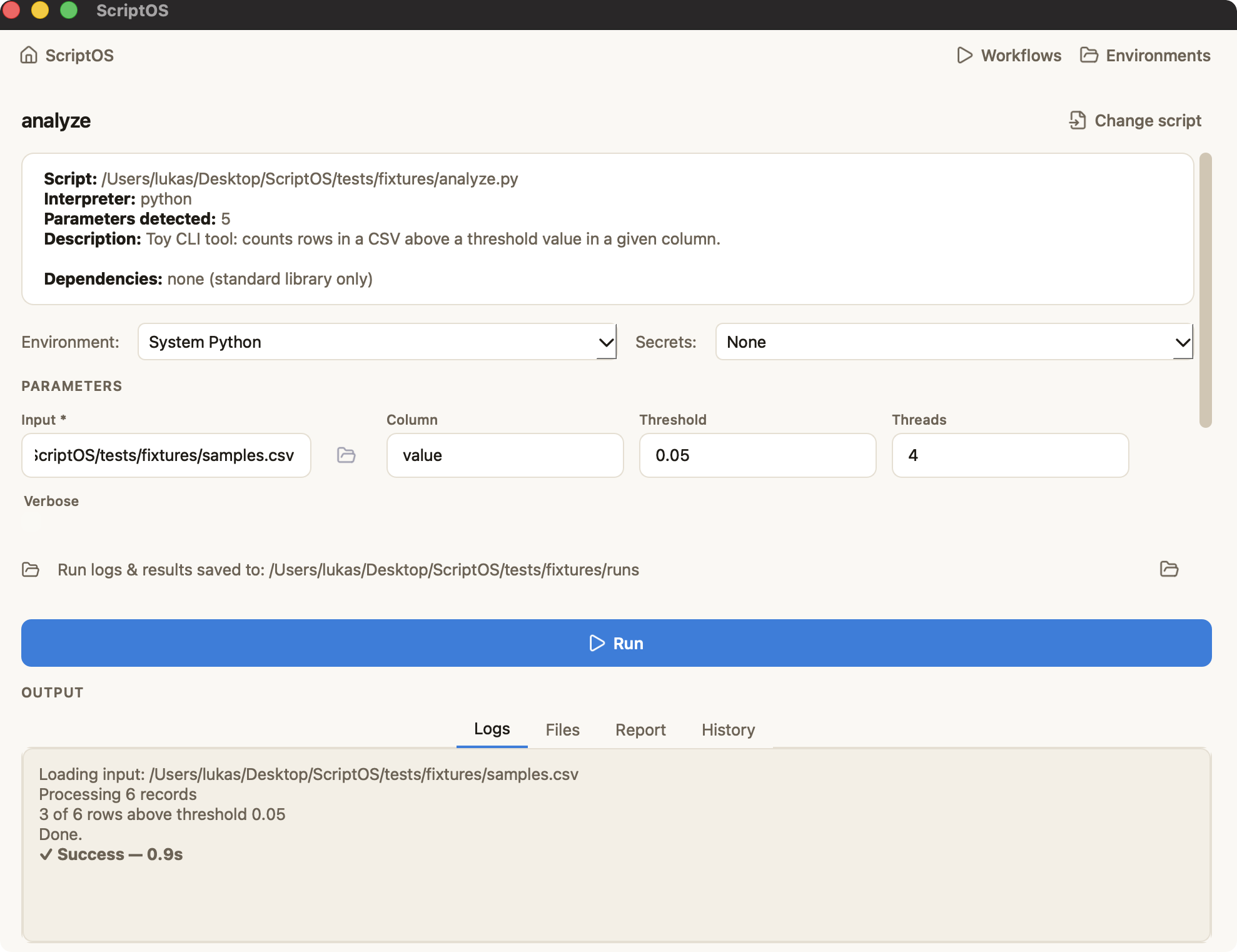
- Launch ScriptOS, drag
tests/fixtures/analyze.pyonto the window. - The analysis card shows: 5 parameters detected, no dependencies (stdlib only).
- In the Input field, drag in
tests/fixtures/samples.csv(or click its folder icon to browse). - Watch the command preview update live as you type.
- Click Run. The Logs tab streams output; when it finishes, open the Report tab — that's your reproducibility record (exact command, parameters, duration).
2. Create an environment and install real dependencies
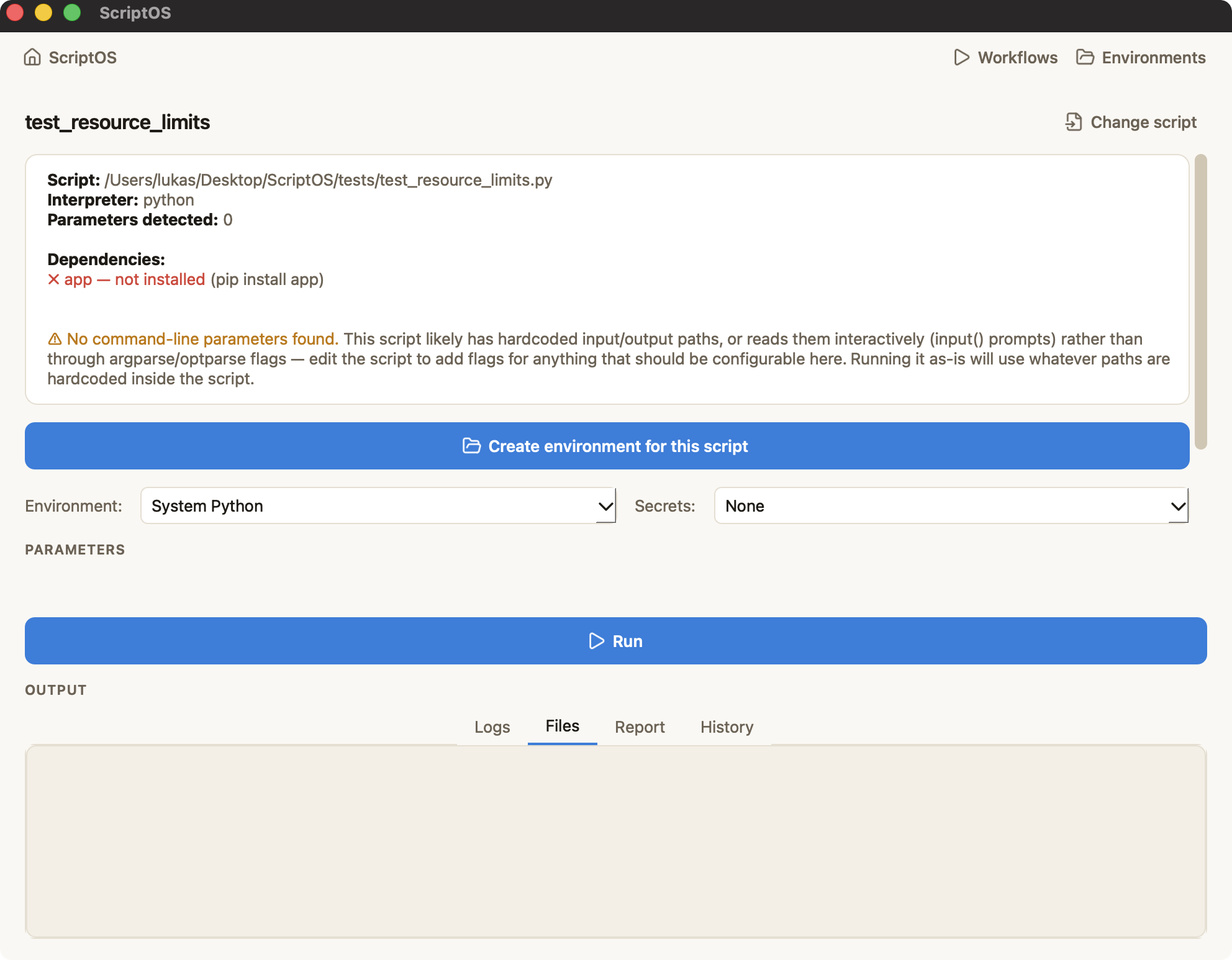
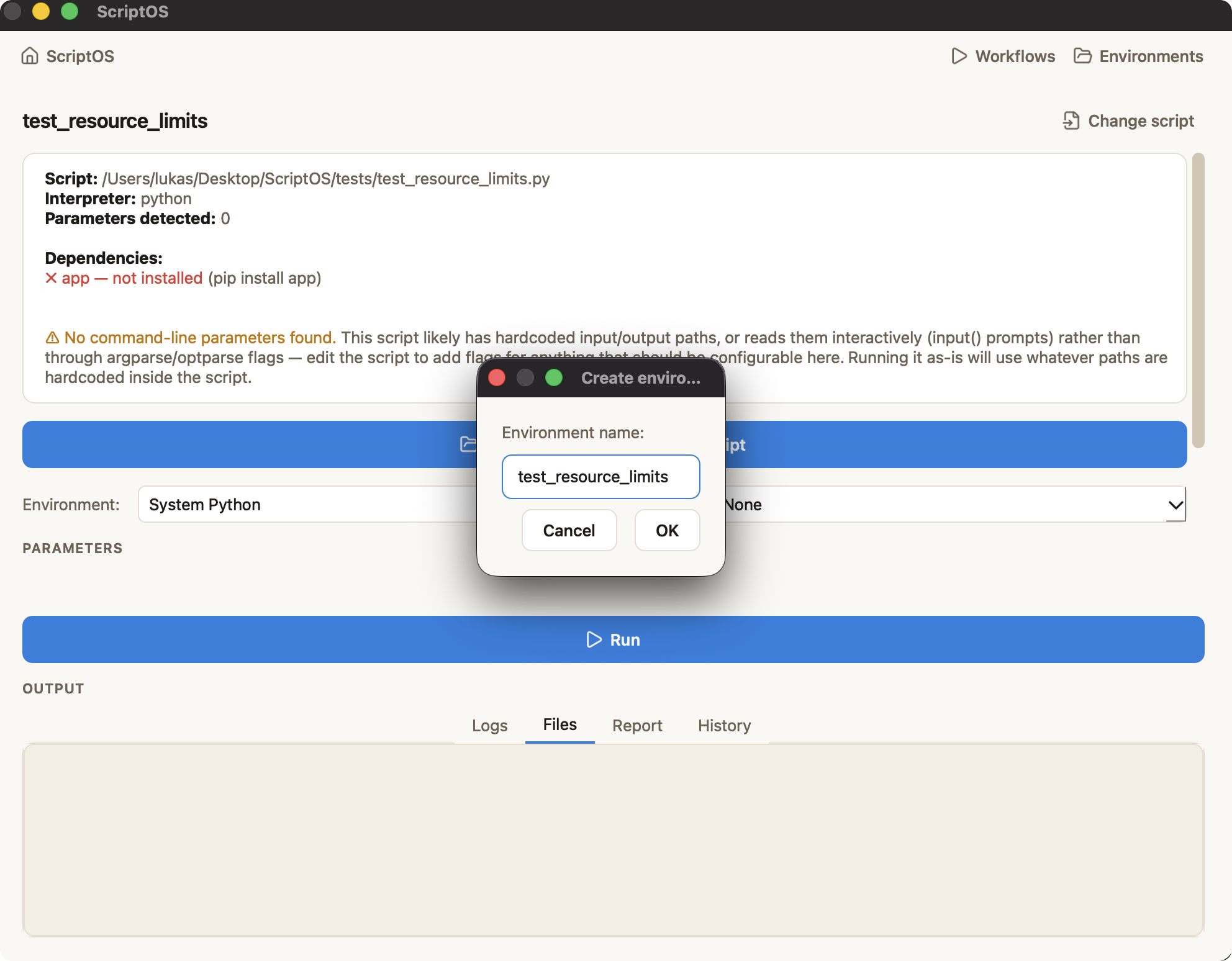
- Click Environments (top right) → Environments tab → + New environment,
name it
demo. - Go back (arrow-left) to your script, load
tests/fixtures/plot_histogram.pyinstead (drag it on, or use File → Recent Scripts if you loaded it before). - Its analysis card shows
pandasandmatplotlibas ✗ not installed — that's checked against whatever's currently selected in the Environment dropdown. - Set the Environment dropdown to
demo. The dependency list re-checks against that environment — still missing there too.
- Click Install missing dependencies into this environment. Watch pip run live; when it's done, both packages show ✓.
 6. Fill Input with
 tests/fixtures/samples.csv, leave Output Dir as ., click Run.
7. Open the Files tab — histogram.png is listed; double-click to open it.
8. Reload the same script later (or reopen ScriptOS) — the demo environment is
still selected automatically. Check Environments → Environments tab → demo and
you'll see "Activated for: plot_histogram.py" and its on-disk location.
3. Store a secret in the wallet and use it in a run
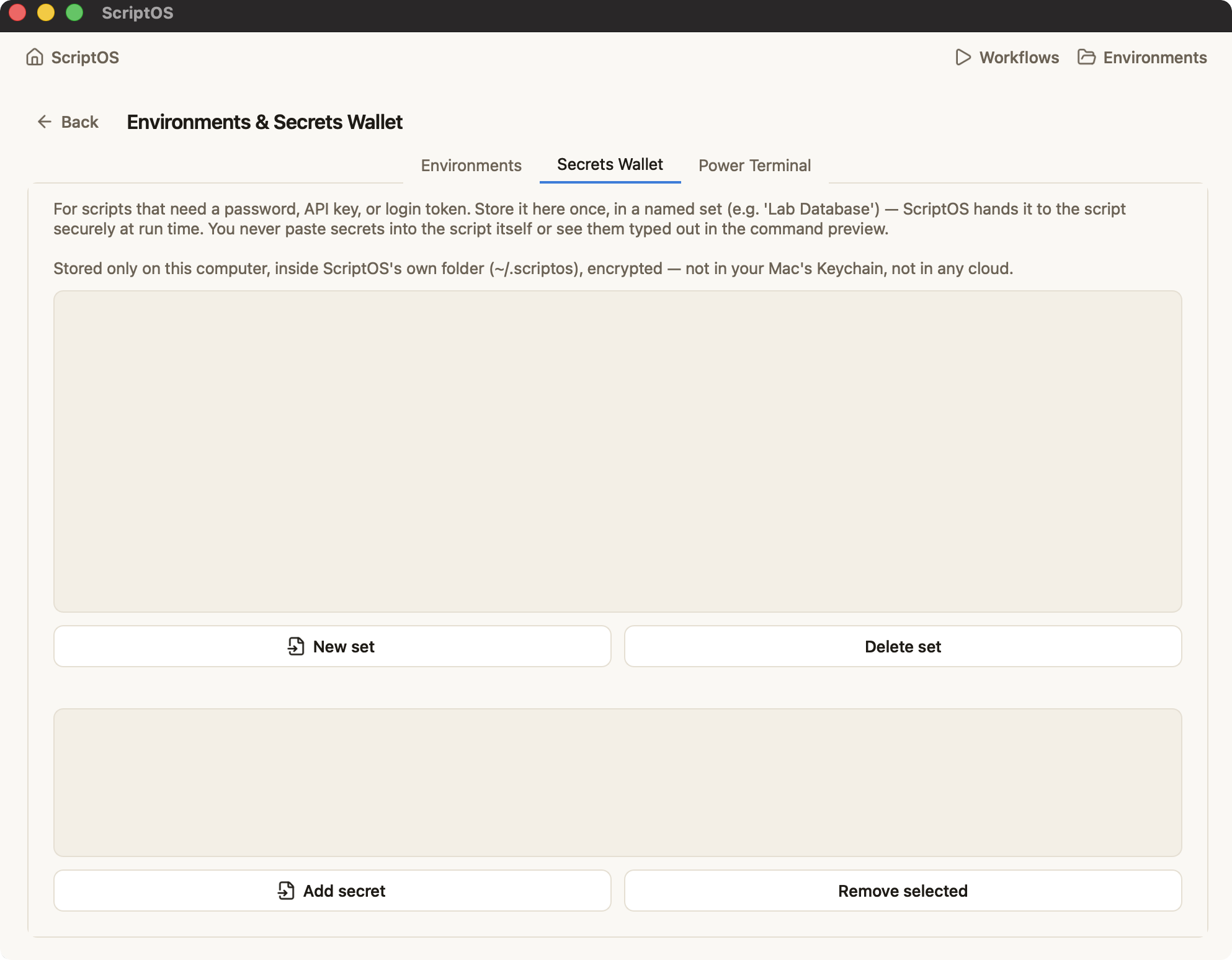
- Environments → Secrets Wallet tab → + New set, name it
Demo Credentials, enter a key likeAPI_TOKENand any test value. - Back on a loaded script, set the Secrets dropdown to
Demo Credentials. - Look at the command preview — the secret is not there. It's injected only
into the script's environment variables at run time, never as a visible argument.
(To prove it to yourself: temporarily add
import os; print(os.environ.get("API_TOKEN"))to a test script and run it — you'll see the value in the Logs tab, and only there.) - The wallet's key file and encrypted store live in
~/.scriptos/— checkcat ~/.scriptos/credentials.enc.jsonyourself; it's ciphertext, not your value.
4. Run an R script
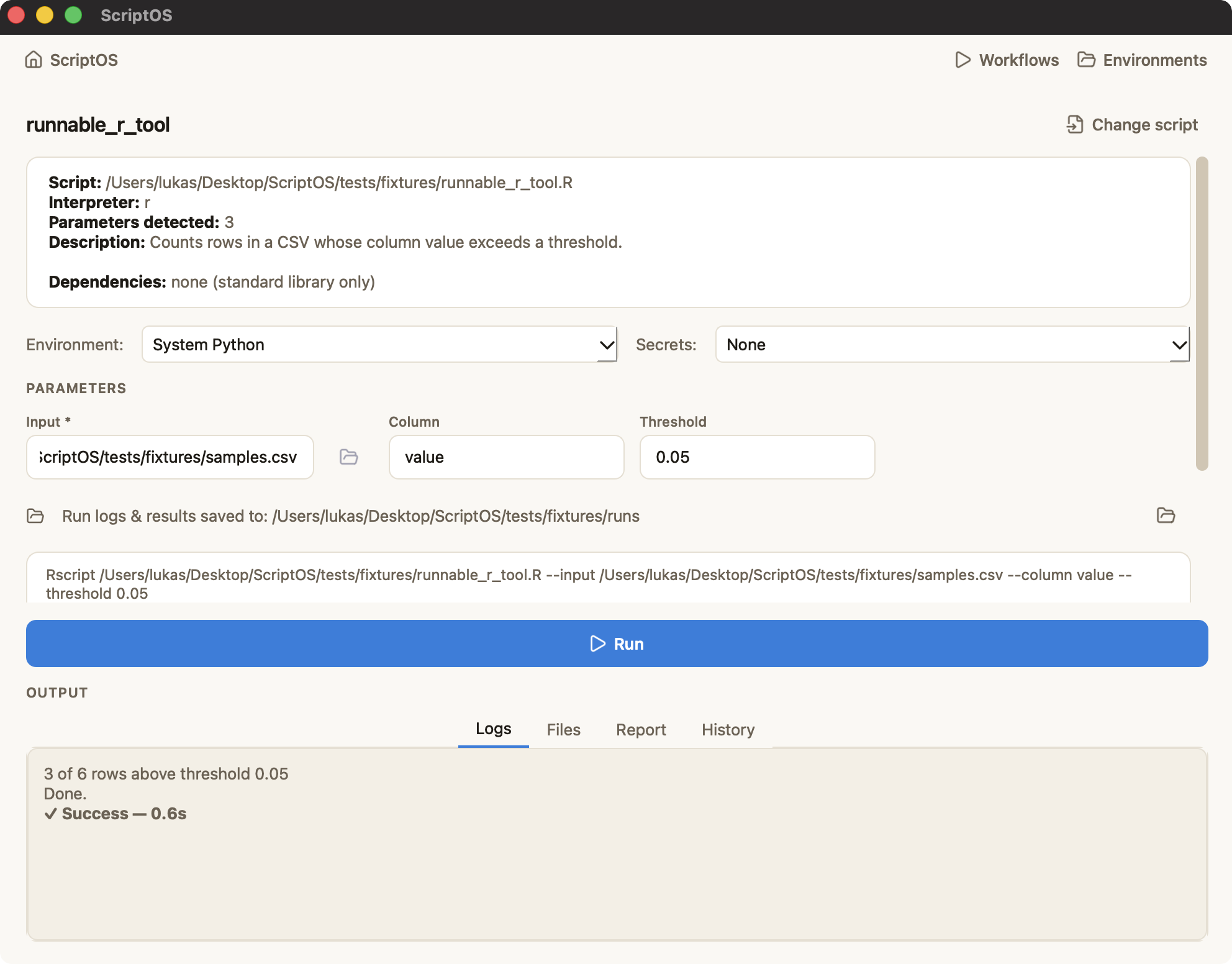
- Install R once if you haven't:
brew install r - Install the one R package ScriptOS's discovery relies on:
Rscript -e 'install.packages("optparse", repos="https://cloud.r-project.org")' - Load
tests/fixtures/runnable_r_tool.R— no extra dependencies, safe to run immediately. - Set Input to
tests/fixtures/samples.csv, click Run — same workflow as Python, just a different interpreter under the hood.
5. Chain two scripts as a workflow
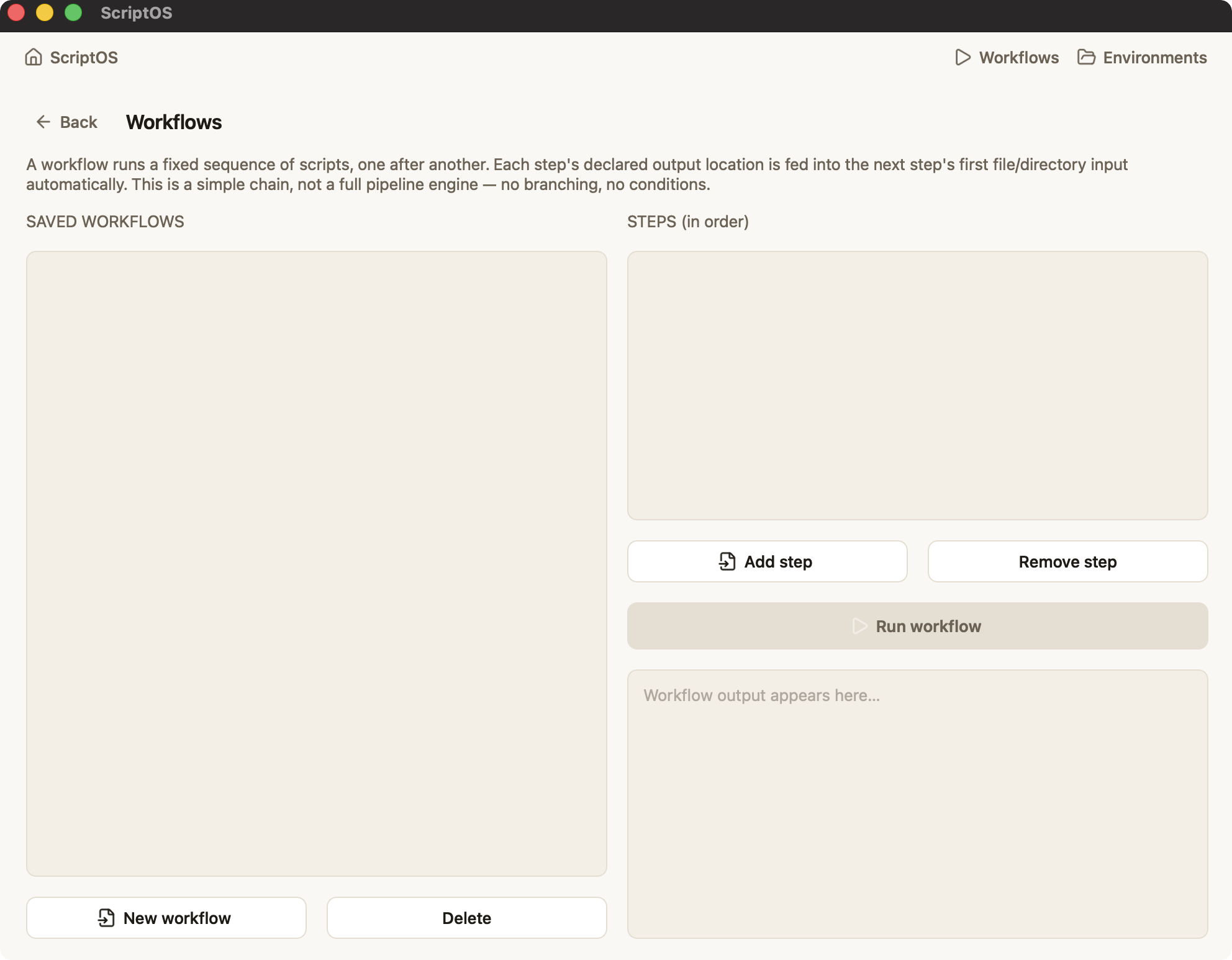
Workflows are a simple linear chain — not a full pipeline engine. Each step's declared output feeds the next step's first file/directory input, automatically.
- Click Workflows (top right) → + New workflow, name it
demo chain. - + Add step twice: pick
tests/fixtures/workflow_step_a.py, thentests/fixtures/workflow_step_b.py. - Click Run workflow. Step 1 writes a result file; step 2 automatically receives step 1's output location and reads it back — no path typed by hand.
6. Use the command line (for people who already live in a terminal)
ScriptOS ships a small scriptos CLI that shares the same environments and
manifests as the GUI:
scriptos list                       # environments + which scripts use them
scriptos new my-env                 # create one
scriptos activate my-env            # opens a subshell with it on PATH
scriptos run tests/fixtures/analyze.py --env my-env -- --input tests/fixtures/samples.csv
Or skip the CLI entirely: on the Environments page, each environment shows a
copyable source .../bin/activate line — that's a plain Python venv, so any
tool that understands venvs (including your own shell) works with it directly.
7. Power Terminal: jump straight into a directory + environment
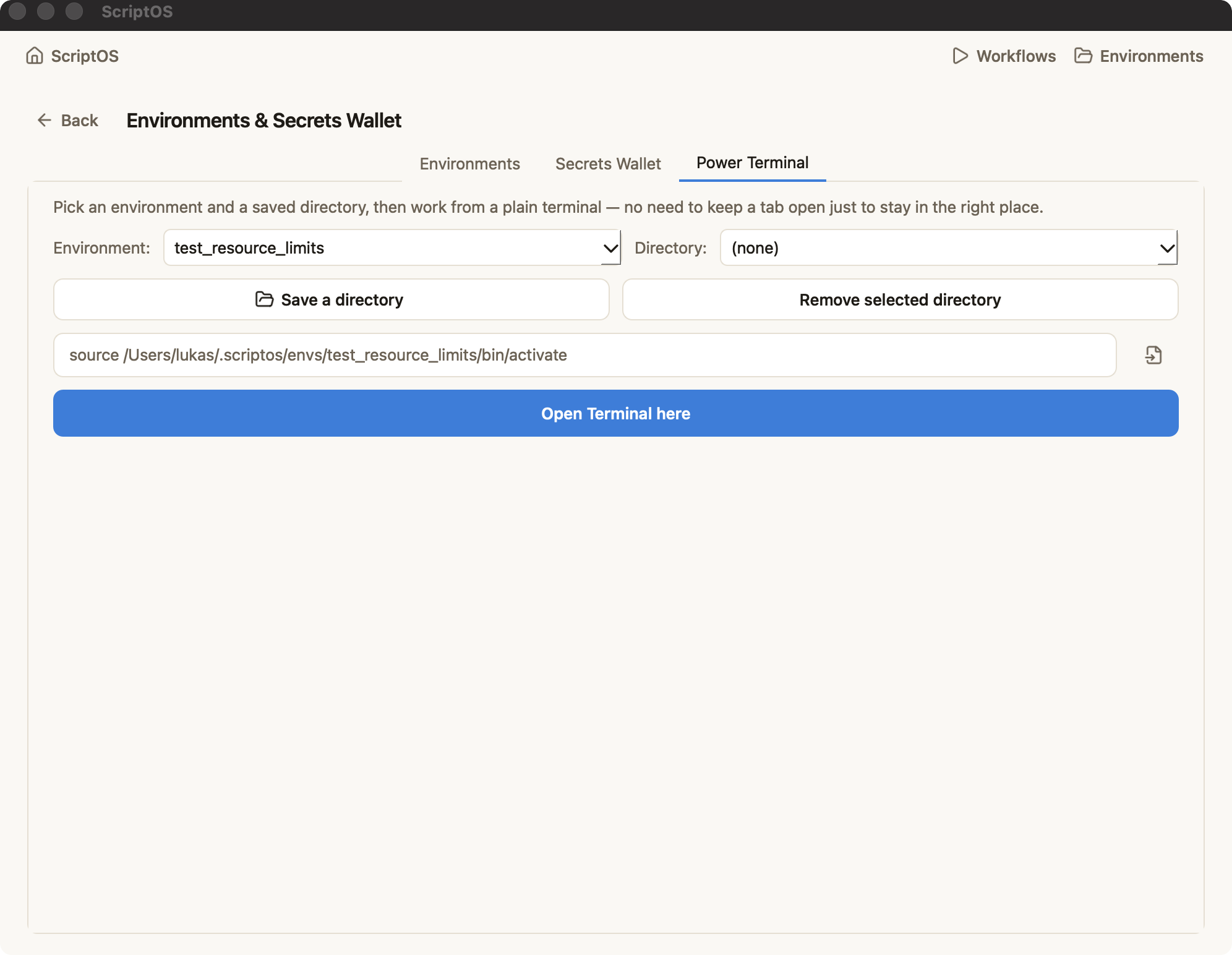
For working from a plain terminal without keeping a tab open just to stay oriented. Two independent wallets you mix and match:
scriptos dir new my-project ~/Desktop/my-project     # save a directory once
scriptos activate my-env --dir my-project            # cd + activate in one step
Or in the app: Environments → Power Terminal tab — pick an environment and
a saved directory from the two dropdowns, get a copyable cd ... && source
.../bin/activate line, or click Open Terminal here to launch a new
Terminal.app window already sitting in that directory with that environment active.
8. See what a script without CLI flags looks like
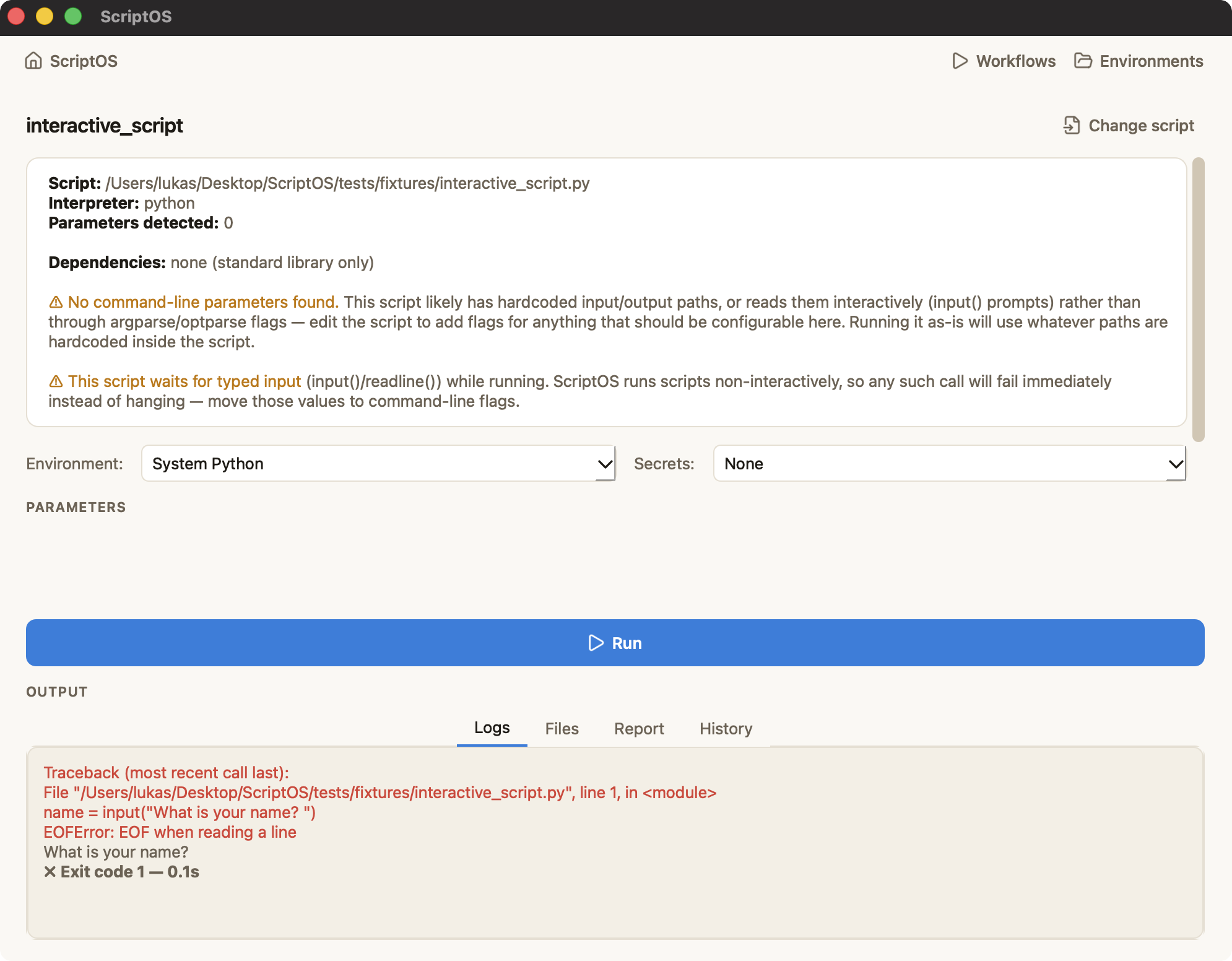
Load tests/fixtures/interactive_script.py — it calls input() and has zero
argparse flags. The analysis card warns about both: no configurable parameters, and
a script that would otherwise hang forever waiting for typed input (ScriptOS makes
it fail fast with a clear error instead).
9. Check a script for risky code before running it
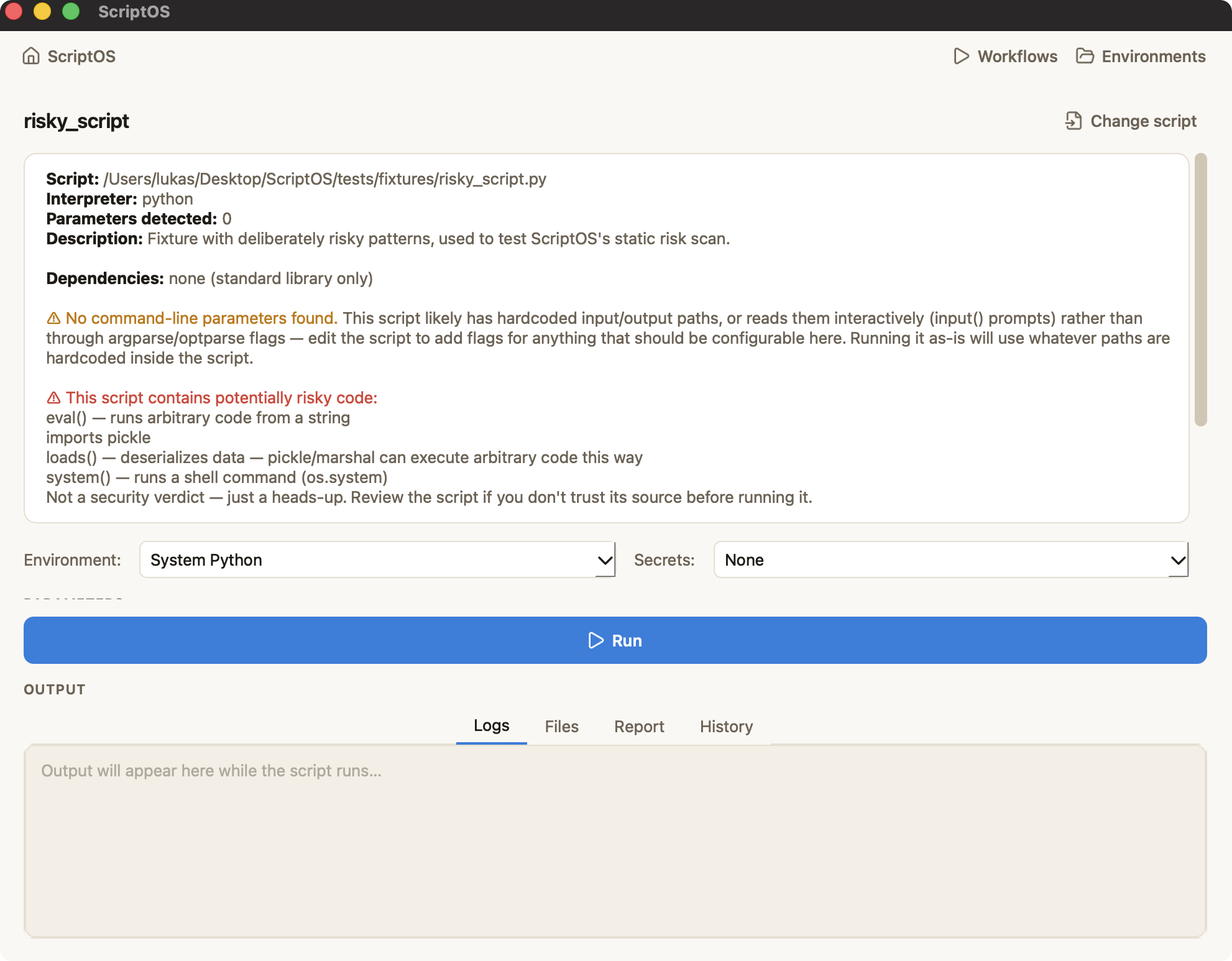
Load tests/fixtures/risky_script.py — it uses eval(), os.system(), and
pickle.loads(). The analysis card flags each one with a plain-language reason.
This is a static heads-up, not a security verdict — a script that hides what it's
doing can still slip past it, so only run scripts from sources you trust.
10. Stop a runaway script automatically
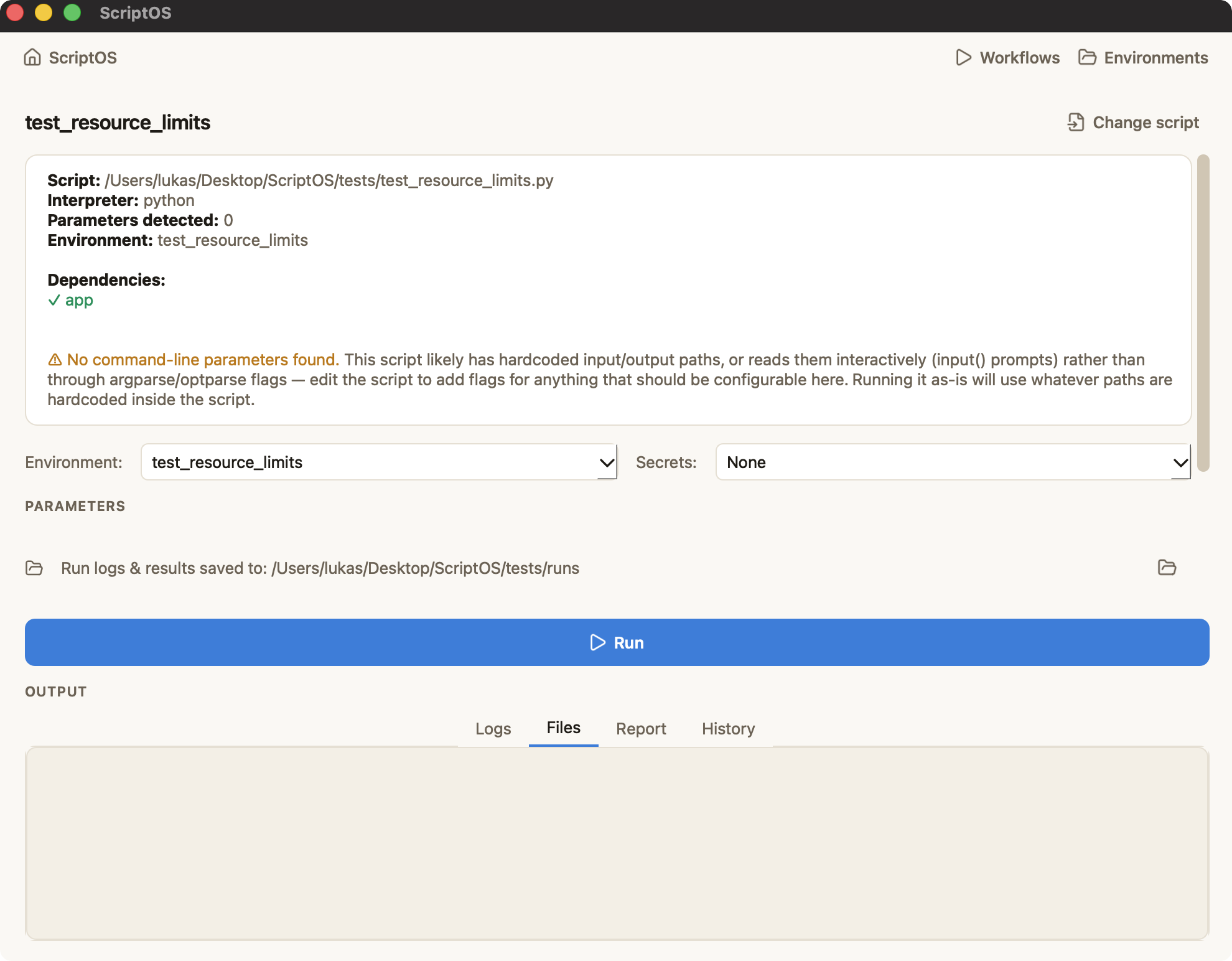
Load tests/fixtures/memory_hog.py, set Memory limit (MB) to 50, and run it —
it allocates far more than that and gets killed automatically, with the reason
shown in the log. Leave both limit fields blank (the default) to run unrestricted.
This is a safety net for scripts that spiral out of control, not an isolation
boundary — a script can still do anything your user account can until a limit is hit.
Installing R
ScriptOS detects whether Rscript is on your system and tells you how to fix it if not:
optparse is what ScriptOS's R parameter discovery looks for (make_option() calls).
What ScriptOS is not
- Not a workflow engine — one script, one run
- Not a replacement for the command line for people who already use it
- Never installs anything without you clicking a button first
- Never touches your OS keychain — the secrets wallet is entirely local to
~/.scriptos - Not a security sandbox — the risk scan and resource limits are heads-ups and safety nets, not isolation; only run scripts from sources you trust